Apr 10, 2012

Downloading Wsp from SharePoint Central Admin


Recently I got a requirement to check the contents of a wsp which was already deployed on the Client's SharePoint server.  I have given access to Central Admin, but as you know SharePoint will not provide us any link to download/extract the deployed wsp. 

These are the ways I found on the web to download/extract the wsp..

  • Using Power Shell Script
  •  Using Code

1. Using PowerShell script :


$myFarm = Get-SPFarm
$myWSP = $myFarm.Solutions.Item("documentspacenew.wsp").SolutionFile
$ myWSP.SaveAs("c:\purna\ documentspacenew.wsp")


This will be saved as 


2.  Using Code :

  protected void btnGetWSP_Click(object sender, EventArgs e)
        {
            SPSolutionCollection allSolutions = SPFarm.Local.Solutions;
            foreach (SPSolution mySolution in allSolutions)
            {
                SPPersistedFile myWSP = mySolution.SolutionFile;
                if (myWSP.Name == "documentspacenew.wsp")
                {
                    myWSP.SaveAs("c:\\Purna\\" + mySolution.Name);
                }
            }
        }

Here the SPSolutionCollection , SPPersistedFile classes are referred from   Microsoft.SharePoint.Administration namespace.

Finally I have got the contents of the downloaded solution by changing the extension from .wsp to .cab.
 

Hope Helpful..!

Apr 9, 2012

Adding Webpart to the Page Programatically in SharePoint

Hi All,

Here I am explaining you how to add a web part to the page programatically.  For this demo I have created a web part page called Demo.aspx  and I am adding a content editor web part to this page through programatically. 

For this first we need to get the reference of the SPLimitedWebPartManager  of the page where we are going to add the webpart.

Here is the code
protected void Addwebpart_Click(object sender, EventArgs e)
        {           
            using (SPSite site = new SPSite(SPContext.Current.Site.ID))
            {
                using (SPWeb web = site.OpenWeb())
                {
                    web.AllowUnsafeUpdates = true;
                    //getting reference of SPLimitedWebpartManager of the page
                    SPLimitedWebPartManager wpManager = web.GetLimitedWebPartManager("http://sp2010:9999/SitePages/Demo.aspx", System.Web.UI.WebControls.WebParts.PersonalizationScope.Shared);                   
                    //Creation of ContentEdiotr Webpart
                    ContentEditorWebPart myCEWP = new ContentEditorWebPart();
                    myCEWP.ID = "myCEWP";
                    myCEWP.Title = "Demo Content Editor";
                    //Adding Webpart to the page
                    wpManager.AddWebPart(myCEWP, "Main", 1);
                    wpManager.SaveChanges(myCEWP);
                }
            }

        }

If you want to add the Shared Documents (ListView webpart) to the page,  Here is the way..

                    web.AllowUnsafeUpdates = true;
                    SPList lstCDD = web.Lists.TryGetList("Shared Documents");
                    if (lstCDD != null)
                    {
                        SPLimitedWebPartManager wpManager = web.GetLimitedWebPartManager("http://sp2010:9999/SitePages/Demo.aspx", System.Web.UI.WebControls.WebParts.PersonalizationScope.Shared);

                        XsltListViewWebPart webpartCDD = new XsltListViewWebPart();
                        webpartCDD.ListName = lstCDD.ID.ToString("B").ToUpper();
                        webpartCDD.ViewGuid = lstCDD.DefaultView.ID.ToString("B").ToUpper();
                        wpManager.AddWebPart(webpartCDD, "Main", 2);
                        wpManager.SaveChanges(webpartCDD);

                    }

Here the AddWebpart method expects three parameters, webpart, zoneid(string-Id of the webpartzone where the webpart is being added to like Main, Left etc), zone index(Int-Index of the zone like 1,2,3..)

Cheers,

Jan 20, 2012

Attaching specific W3WP Worker Process in SharePoint Custom Code Debugging


Hi Guys,

This is a small post but very useful  in the sharepoint  custom application development.

While debugging your custom code in the SharePoint instead of attaching all worker processes(w3wp.exe) this is the command to attach/identify only the current application specific w3wp process

Command to get the correct w3wp process

C:\wondows\System32\inetsrv\appcmd list wp


Here I have written my custom code on Sharepoint-1122 site and debugging the same. So the processor which attached to this application  is 4736(see above fig).

So attach only one process which is associated (like below) instead all


Have a happy debugging..!

Dec 30, 2011

SharePoint 2010 Modal Dialog


Hi Guys,

This is a small post regarding the Sharepoint Modal Dialog. In this post I am going to expalin you how to call a Sharepoint Modal Dialog from the applications. For this demo I have taken the Sharepoint Project template in visual studio and added an application page to my project. And then I placed a hyper link on this page to call the modal dialog.

The class SP.UI.ModalDialog represents the modal dialog and the method showModalDialog displays the modal dialog with the dialog options which we provide. 

Here is the code (written in C# .cs file) to show the modal dialog by registering a script which calls the modal dialog

 string myScript = @"   var mymodalDialog; 
                                 function ShowDialogTest(myViewUrl) { 
                                    var options = { 
                                        url: myViewUrl, 
                                        tite: 'Demo Page', 
                                        allowMaximize: true, 
                                        showClose: true, 
                                        width: 600, 
                                        height: 400 }; 
                                       mymodalDialog = SP.UI.ModalDialog.showModalDialog(options); 
                                }";
            ScriptManager.RegisterStartupScript(this, this.GetType(), ClientID, myScript, true);
            string strUrl = "http://moresharepoints.blogspot.com";
            hLinkshow.NavigateUrl = "javascript:ShowDialogTest('" + strUrl + "')";


This is the output on click of hyperlink

You can find more on this from msdn.


Dec 1, 2011

Enabling Inline Editing for Share Point lists

You can edit the data of sharepoint lists in line mode. But this is specific to the view of the sharepoint list. Here is the way how to enable the inline editing for the list

This is my announcements list.


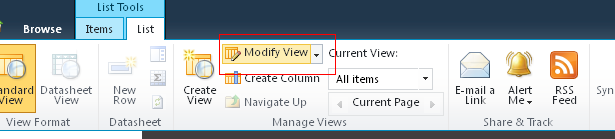
Click on List Tab in the Ribbon-->Select Modify View Button


Go to Inline Editing Category (below of Filter Category)


Check Allow the Inline Editing option. Go to your list back you will find this feature like this

On mouse Over of your list item you will find the edit icon, Click On and do the changes


The same way you can add the items inline.

Note : This feature is specific to your view(Here All Items). You can set this using code too.


Nov 1, 2011

SPLongOperation Class in SharePoint

 Hi All,

Recently  I worked with this class in one of my projects to show the user with useful message when a long operation/activity is taking place in the background..I thought to share with you...

Here is the sample to use this..a webpart with a button. On click of button I am calling this..

protected void btnLoad_Click(object sender, EventArgs e)
{
  using (SPLongOperation myOperation = new SPLongOperation(this.Page))
  {
    //main bold text when action is in progress
    myOperation.LeadingHTML = "Hey..! Connection established to the database server"; 
    //small text when action is in progress
    myOperation.TrailingHTML = "Please wait during the data fetch"; 
    //start the operation
    myOperation.Begin();             
    //our long running action here
    System.Threading.Thread.Sleep(120000);//2 mins 
   //end of the operation and it redirects to home page after end of the operation
    myOperation.End("/sitepages/home.aspx");             
           
  }
}

Here is the result of this..


Happy Reading..!

SharePoint 2010 PowerShell Basics


Hi guys,

In this post I am going to explain you what is powershell management tool  in sharepoint , how it will be used and how it is different from the classic stsadm tool.

What is Sharepoint 2010 Management Shell :

In Sharepoint 2010 , a new feature called sharepoint 2010 management shell is included to work with the administrative jobs as we can do with the stsadm.exe in prior(moss).

Generally we can say powershell is a task automation tool which is built on top of the .net frame work. to achieve the administrative tasks .Here we write the  cmdlets(Command lets) , as command in the cmdprompt/stsadm. And also along with the cmdlets, the powershell can  execute the scripts,functions and executable programs too.  Here I will give a basic idea on the cmdlets..

Cmdlet ( called as command let )  : Its like a command to performs the task, takes the input and generally returns the .net frame work objects. The cmdlet is a combination of verb and noun in syntax.

Syntax  : The syntax is like Verb-Noun

Eg : Get-SPSite  

Start working with Powershell :  

Open the sharepoint powershell  console

StartàAll programsàMicrosoft Sharepoint 2010 ProductsàSharepoint 2010 Mangement Shell-->Right click on it and run as administrator


Execute the above mentioned command Get-SpSite.It gives all the site collections as below


There are many pre defined cmdlets introduced with the SharePoint 2010, you can find here. Here  I am giving the basic cmdlets to know

1.Get-Command : It will list all the cmdlets 

In above cmdlet if we specify the command it will give the entire syntax like this 

Ex : get-command  enable-spfeature

This gives you the entire syntax of the enable-spfeature cmdlets like this

Enable-SPFeature [-Identity] [-AssignmentCollection ] [-Confirm []] [-Force ] [-PassThru ] [-Url ] [-WhatIf []]

2.Get-Help  : It gives you the help topics:

Like if you know the part/word of the command and want to know the full cmdlets then you can use this like

Get-help *feature*

This will list all the commands which contains the word feature


3. Get-command  –verb   : will list all the cmdlets which has the verb

Eg :  get-Command  –verb , lists all the cmdlets which has the verb ‘enable’


4. Get-Command  -noun   : will lists all the cmdlets which has the noun

Ex:  get-Command –noun spsite,
 list all the cmdlets which has the spsite as noun


5. Get-help -examples

If you want any cmdlet with a example use this cmdlet

Eg : get-help enable-spfeature –examples


This will give the example of the cmdlet which enables the  feature in a given scope level (site/subsite) like this


The below are the cmdlets we use at the time of deployment

Adding the solution :
Add-SPSolution -LiteralPath  c:\purna\ Mywebpcm.wsp
Installing the solution :
Install-SPSolution -Identity Mywebpcm.wsp -GACDeployment
Updating the solution :
Update-SPSolution –Identity Mywebpcm.wsp –LiteralPath “C:\purna\ Mywebpcm_v2.wsp” –GacDeployment
Uninstalling the solution :
 Uninstall-SPSolution –Identity Mywebpcm.wsp –WebApplication http://pcmweb  
Removing the Solution :
Remove-SPSolution–Identity Mywebpcm.wsp
How cmdlets are different from the stsadm commands ?
1.  Cmdlets are based on the .net Frame work they are the instances of the .net framework classes. (Ex : when we get the error it throws a object based error instead a simple text as in stsadm)
2 . You can sort /format the result this was not possible with the stsadm.

Here are the more cmdlets from the msdn  article..

Happy reading..!