Aug 20, 2011

Missed Webparts Information while migration from Moss to SharePoint 2010

Hi,

In this post I am going to explain you how to get the missed webparts information after placing moss content database to SharePoint 2010 while upgrading process. This is a very useful information about the missed webparts when you are working with the migration process.


In Powershell when you run the Test-SPContenetDataBase cmdlet to check the readiness of the moss content database against the created 2010 site , you will get report with all missed setupfiles, missed webparts etc etc..there you will be provided with the ID of the webpart.The below query gives you the full information of the webpart such as the page where it resides, the status of the webpart like whether it is included in the page or not etc...

Here is the sql query to get more information of the webpart by providing its type id at highlighted place


Select SiteId, AllDocs.DirName as SiteUrl, AllDocs.LeafName as PageUrl, AllDocs.DirName + '/' + AllDocs.LeafName as Url, WebParts.tp_DisplayName as DisplayName, WebParts.tp_IsIncluded as Included,WebParts.tp_Deleted as Deleted FROM [dbo].[AllDocs] INNER JOIN [dbo].[WebParts] ON [AllDocs].Id = [WebParts].[tp_PageUrlID] Where [WebParts].[tp_WebPartTypeId] ='44c7b3b5-185f-c771-94fc-fcfdc52ceed5' Order By Url

The output will be like this


Happy reading..

Reference Link
http://sp2010extmigrareport.codeplex.com/

Aug 12, 2011

Meta Data Management Sharepoint 2010-Part1

Hi Guys

 In this post I am going to explain you a small concept of managing the meta data in sharepoint 2010. Here I will show a demo of the auto suggest option for a column using the metadata. In Sharepoint 2010 there is a lot of scope to managing the data/content when compared to moss.

The Sharepoint meta data hierarchy is organized in this way

• TermStore
• Group
• Termset and
• Term

To say In brief The Term Store contain Groups and the Groups contain Term Sets and the Term Sets conatin terms.The terms can also contain other terms.

Now I am creating the above mentioned by using the Term Store Management tool from Site Actions page ,follow the below steps
Go Site Actions—Site settingsàSelect Term Store Management under Site Administration section.
then

If you encounter this error, you need to create the Metadata service. If you already have check whether it is started or not.
Here I am going to create a new Managed Meta Data Service
Go to Central AdminàManage Service Applications under Application Management Section
Select Manage Service Applications


Then select New in Ribbonàthen select Managed Meta Data service.


Give a name (Here I am giving Managed Meta Data Service)
Specify the Database server; Select the New Application pool (which is recommended) on which this service will run. Give the name and specify the service account and then click ok.


Make sure that the Managed Meta Data Web service in start mode.
To check this
Central adminàManage services on server under system settings section and select the Managed meta data web service and start if it is stopped


Now Open the Termset
Select the Managed Meta Service and right click on that to create a group.


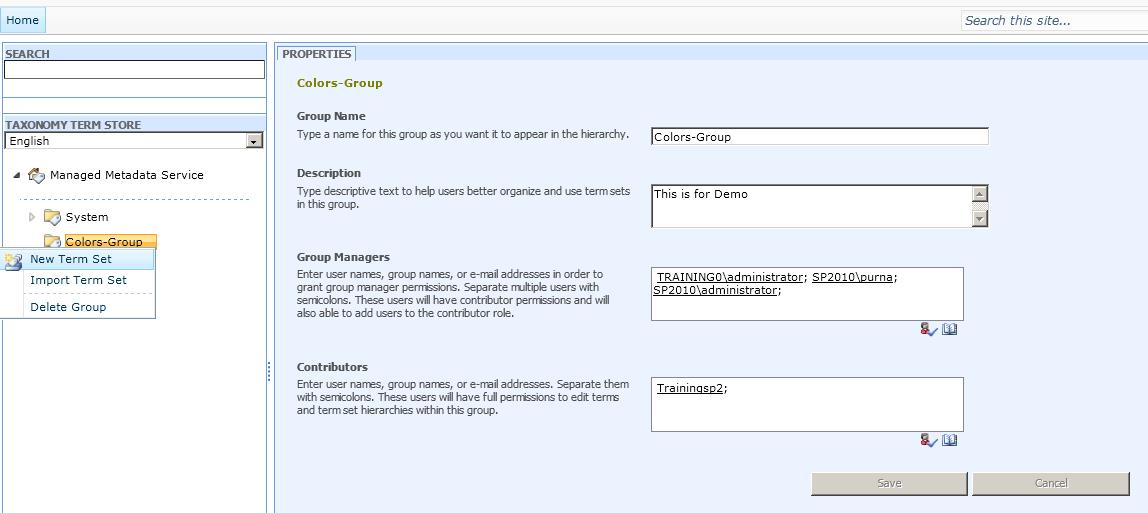
I have given name as Colors-Group.
Give the description and specify the group manager and contributor accounts

Here the group managers are the users who have contribute permission to add the users in to contributor group.
The contributors are the users, they can edit the termsests and terms in a group.
Now Create a Termset under this Group


Give Name as Color-Termset


Fill other information Description, owner, contact, stakeholders etc...See the description on left side to more information about these things and click Save.
Now create terms under this Termset

Give Red  and Fill other details in the right pane. Like this create more terms names.


So with this the Group, Termset and terms creation is over.  

How to use these Termsests in our Lists?
Here I am going to use this metadata for a column in my list.
I have a list called products with the columns Product name, Cost and Warranty. I am going to create a new column called ProductColor which will use this (the above created) metadata.
Go to List settings (or from ribbon) select create column
Give title as Product Color and select Type as Managed Metadata


See the continuation to this post Meta Data Management Sharepoint 2010-Part2

Meta Data Management Sharepoint 2010-Part2

In Colum settings You can choose multiple value field to allow multiple terms in to this column and In Display Format section you can select to display the label or the entire path of the term.
continuation to my previous post Meta Data Management Sharepoint 2010-Part1
And in Term Settings Section select the Color-Term set (which we created earlier) as shown below.


Give a Default Value if you need.
Now add an item in to the Products list


When you type ‘g’ it will give you the suggestions from the Color-TermSet like Gray , Green etc. This  field will not allow other values.

Here in this post I have created the terms in the site directly, instead we can import from a csv file or we can write the code to add the termsests.
And this is a small usage of metadata management, there are lot of features we can implement in sharepoint 2010 by managing the data.
Enjoy Reading..

Resources:
http://msdn.microsoft.com/en-us/library/ee559337.aspx
http://www.cmswire.com/cms/document-management/sharepoint-2010-using-taxonomy-metadata-to-improve-search-discovery-007425.php?pageNum=2
http://sharepointegg.blogspot.com/2010/10/creating-term-set-in-sharepoint-2010.html

Aug 10, 2011

TryGetList method in 2010 OM

 Hi

 Recently I noticed a method in 2010 object model. Generally when we writing the code to get a list from the web, we will get  the error if the list does not exist. For that we will loop through the lists collection and checks whether it exists or not


           SPSite oSite = SPContext.Current.Site;
            SPWeb oWeb = oSite.OpenWeb();
            SPList myList = oWeb.Lists["XYZ"];


If there is no list with the name XYZ, it throughs null reference exception. To avoid this,In 2010 OM a new method is introduced in the SPListCollection .Simply use this method instead of looping all the lists and check its existance


            SPList myList = oWeb.Lists.TryGetList("XYZ");
            if (myList != null)
            {
               //your operations
            }


Jul 4, 2011

Sharepoint webpart maintenance page

Hi Guys,

Some times while working with the Sharepoint pages ,we are unable to open/edit the page in the sharepoint designer if there is a problem with the webparts(generally script included webparts) . In such cases if we want to remove the issue caused webpart we will go for this webpart maintenance page.

This is a small way/trick to find the webparts on a page in sharepoint with their status.

If your page url is  http://myserver:5485/default.aspx

add ?contents=1 at the end of the url i.e http://myserver:5485/default.aspx?contents=1


From here you can find theat the webpart with name Demo2Tasks is on the page but it is in closed state.

Happy reading..!


Jun 13, 2011

Sharepoint List Data as XML

                         
  When working with the Sharepoint List/Library, sometimes we need the xml specification of the list/library data. A simple example I can give here is like when we are working with a column in the list, later if the name of the column is changed, we will try to get the value using its current name but we can get the result only when we use its original name which was given at the time of column creation.

In that case to find the actual name of the column we can use these steps to know the original name.


This is not only the case where we need the XML data of the list, there are some other cases like when we are working with script to get the sharepoint data from its webservices, we will need this a lot.

These are the steps to find the XML view of a Sharepoint list /library
  • 1.      Find the GUID of the list/library
  • 2.      Place the GUID Iin XML view link


Step 1: Find the GUID of the list

Go to view all site contentàList settingsà in Url you will find

http://yourservername:port/_layouts/listedit.aspx? 
List=%7BCCD41672%2DD08D%2D41F4%2D88A4%2DD9D8C741B0C6%7D

Replace %7B with “{“, %2D with “–“and   %7D with “}”

So your GUID looks like ={ccd41672-d08d-41f4-88a4-d9d8c741b0c6}.
Get full information here

Step 2: Place your list GUID in this url


http://yourservername: port/_vti_bin/owssvr.dll?Cmd=Display&List={345e3a5e-6855-4ef7-b901-cb3f0a196872}&XMLDATA=TRUE

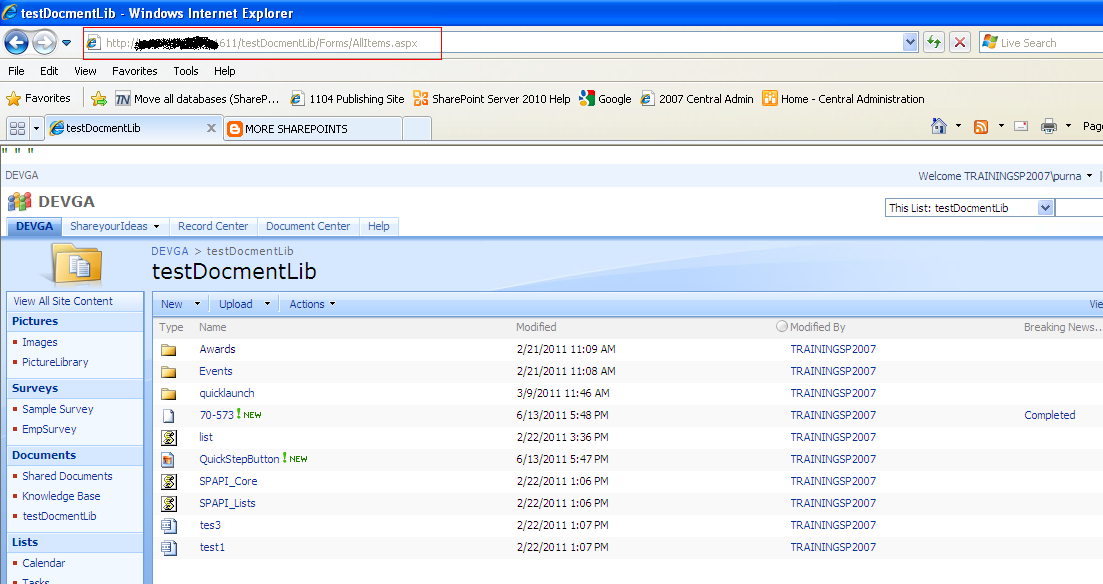
This is my Document Library


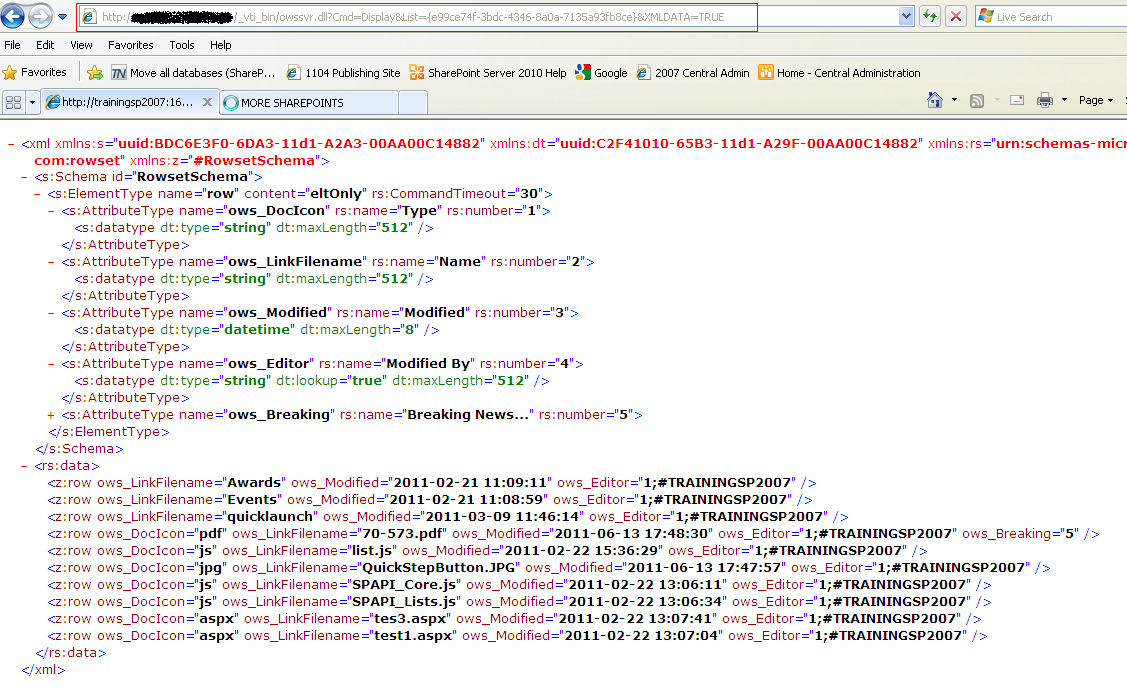
This is the XML view of the library


Here you can see the columns as attributes and the data(items) as Rows with their nodes.


Get more information on this here

http://msdn.microsoft.com/en-us/library/ms478653.aspx
As I explained above if you change the name of the column the rs:name will be changed , but the name will be remains same always. 

Thanks.

Jun 9, 2011

WorkFlow QuickStep in Ribbon

What is a QuickStep:

"This is a button in the Ribbon with which you can initiate the designer workflow".
 This will be very useful when you have

1. A work flow for the item which need to start manually and
2. The selection of a particular workflow among other workflows which associated for the item

As name itself you can initiate the workflow quickly by avoiding some of the usual steps.

Steps to create a QuickStep:

1.  I have created a custom list called “Products”

2. Added the columns Quantity (of type number) and Description (of type single line of text)


Add some test entries in to the list like this


Now I am going to create a workflow with Quickstep in ribbon for this list.

Select List tab from List Tools Category in the Ribbon .And select the Quickstep as shown below from the ribbon .


Sharepoint designer will be open with the below window


Fill the details. Here I am creating a new workflow.(Instead you can start the existed workflow tooSelect start a new workflow option).

Button Label: This is the text which will appear on the button.

Button Image: This is the Background image for the button (here I am selecting a picture sharepoint 2010 logo from my picture library).

Taskes some time to process


A workflow will be created with the name “Button-DemoQuickStep”


Add the conditions and actions (as usual) .Here I m setting a condition as If my quantity greater than 5 I am updating my description field to the “The quantity is more than 5”. 


Then Click Publish


Open the Products List. Then add a new item


A Item will be created.


Select the Items tab in List tools part in Ribbon. You will find the Button in the ribbon with the name DemoQuickstep as we given in previous steps


Select the created item and click on the Demo QuickStep button


Start the WorkFlow. Then the workflow will be run and the description will be changed as we mentioned in workflow action.


So..In this way we can create a quickstep button to start the workflow.